
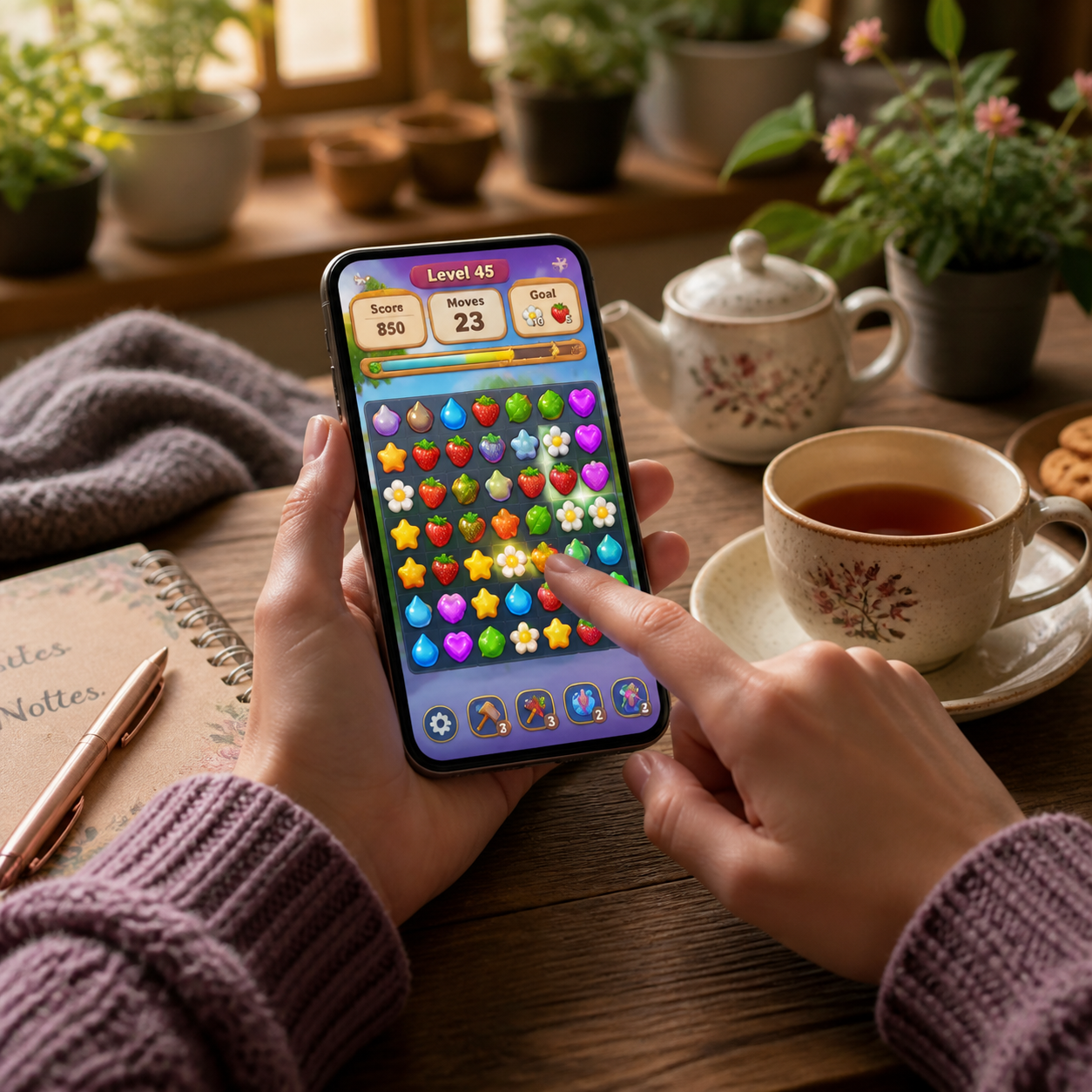
A Beginner’s Guide to Browser-Based Gaming
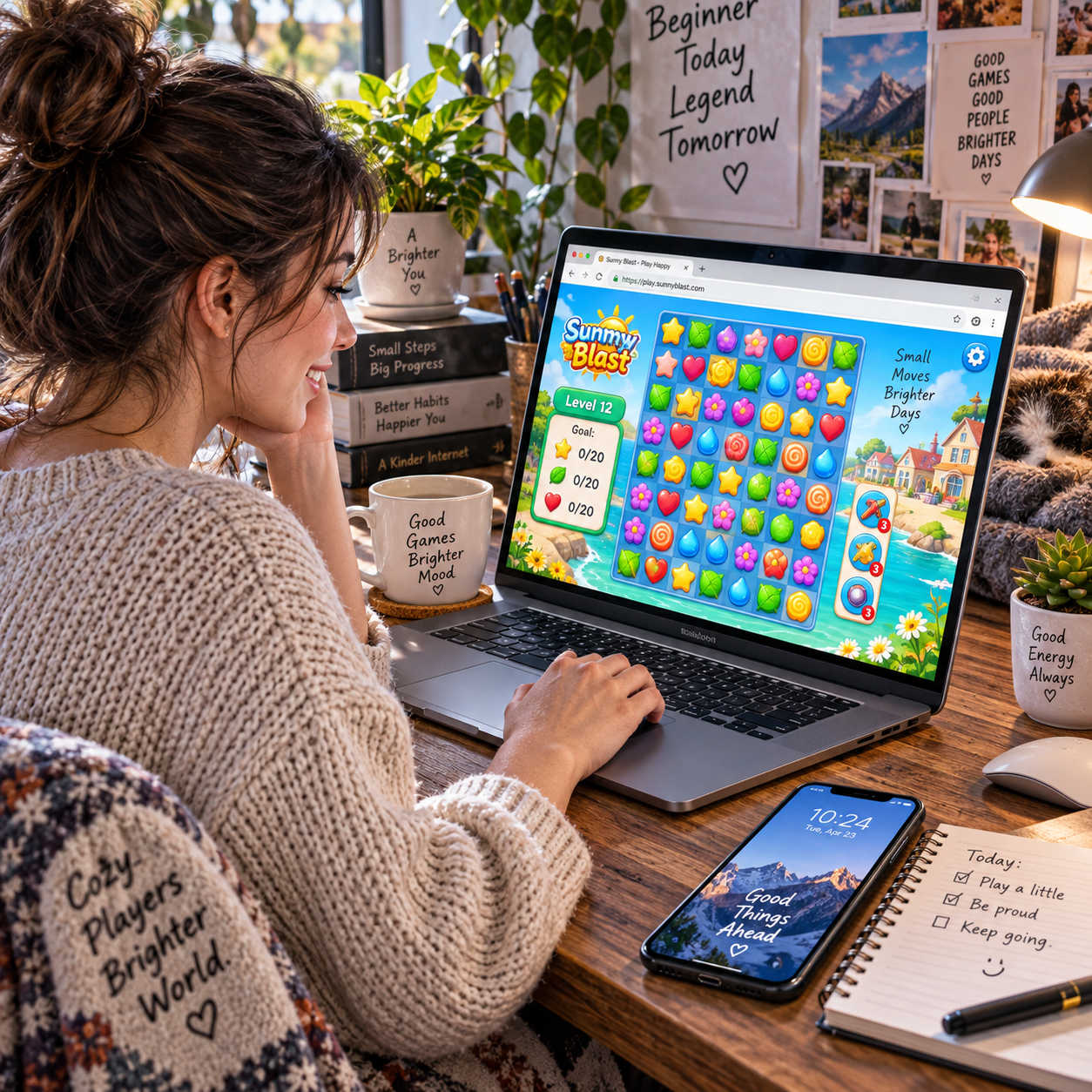
Browser-based gaming makes it easy to try a game without first installing a large program. Open a game in a web browser, follow its instructions, and you may be playing within moments. From quick puzzles to relaxed strategy games, there are options for short breaks and longer sessions alike.
Getting started is simple, but a few details matter: games vary in device compatibility, internet needs, pricing, and whether they save your progress. This guide explains how browser games work, what to try, and how to choose a safe, enjoyable place to play.
What Is Browser-Based Gaming?
Browser-based gaming means playing a game through a web browser, such as Chrome, Firefox, Safari, or Edge, rather than installing a standalone game program. Many modern titles use HTML5, a web standard that lets games display interactive graphics and respond to your mouse, keyboard, or touchscreen.
When you open a game, your browser loads its files and runs the parts of the game designed to work on your device. Some games run mostly on your phone, tablet, or computer; others rely on a server to handle parts of the experience, especially online multiplayer features. You usually do not need a separate launcher, although a game may ask you to create an account.
The main appeal is low friction. You can sample a casual game and close the tab when you are done. The trade-off is that browser games can depend on a stable connection, browser compatibility, and the site hosting them. A game may also offer optional purchases, ads, or account features, so check the details before playing.
What You Need to Get Started
To play browser games, you need a supported device, an up-to-date web browser, and an internet connection that is reliable enough for the game. Most casual titles work on everyday phones and computers, so specialized gaming hardware is rarely necessary.
Choose a device that suits the controls. A desktop or laptop gives you a larger screen and a physical keyboard or mouse, which can help with strategy games and games that require precise clicks. A mobile phone or tablet is convenient for touch-friendly puzzles and arcade games. Not every game supports every screen size, though; some are designed primarily for desktop or mobile play.
Use a current version of a mainstream browser and allow the page to finish loading before you start. If a game looks broken, update the browser or try another one. Browser compatibility can vary because games use different web technologies and control schemes.
A steady internet connection is useful, particularly for multiplayer games, ads, and games that save data online. Some browser games can continue after loading or work offline, but do not assume this is available. If you are using mobile data, check whether the game streams substantial content or repeatedly reloads between levels.
Types of Browser Games to Try
Browser games cover a range of approachable genres, including puzzles, strategy, arcade challenges, and multiplayer games. Start with a genre that matches the kind of break you want: quiet thinking, quick action, or playing with other people.
- Puzzle games: Match objects, solve logic problems, or arrange tiles. They are often easy to learn and work well in short sessions.
- Strategy games: Plan moves, manage simple resources, or build a small virtual world. These games reward patience more than fast reactions.
- Arcade games: Dodge obstacles, collect items, or aim for a high score. Levels are often short, making it easy to play a round and stop.
- Multiplayer games: Compete or cooperate with other players in a shared game. Check whether an account, chat feature, or invitation is required before joining.
Descriptions and screenshots can help you judge a game, but pay attention to its controls and session length too. A puzzle may be calm but require a long level, while an arcade game may be more suitable for a two-minute break. If a title feels confusing, look for a tutorial or a practice mode before deciding it is not for you.
How to Choose a Game and Get Playing
Choose a browser game by matching its genre, controls, session length, and cost to what you want from the experience. Then open it on a compatible device, review any permissions or account requests, and follow the on-screen instructions.
A quick selection check can prevent frustration:
- Pick a mood: Choose a puzzle for a slower pace, an arcade game for quick action, or a strategy game if you enjoy planning.
- Check the device: Look for mobile support if you plan to use a phone, or keyboard and mouse controls if you prefer a computer.
- Review the terms: See whether the game is free, ad-supported, subscription-based, or includes optional purchases.
- Consider the time: Check whether a round takes a few minutes or whether progress depends on longer sessions.
Once you have chosen, visit the game’s official site or a reputable games platform. Let the page load, select a clear Play or Start button, and begin with the tutorial if one appears. Be cautious if a site asks you to install an unexpected file or browser extension just to launch a simple game; that request may be unnecessary.
Tips for a Better Gaming Experience
For smoother browser gaming, keep your browser updated, use a compatible device, and check how the game saves progress before you invest time in it. A few basic privacy and performance habits also make casual play more dependable.
Improve compatibility and performance
Close extra tabs if a game stutters, reload the page if controls stop responding, and try another supported browser when a title will not load. On a phone, rotate the screen if the game requests landscape mode and make sure the browser is not blocking content the game needs. Avoid downloading unofficial “fixes” from pop-ups.
Protect your progress and privacy
Browser games handle progress in different ways. A game may save to browser storage on one device, sync progress to an account, or save only at certain checkpoints. Look for a save indicator and read the game’s help information. Clearing browser data, using private browsing, or switching devices can remove locally stored progress, so create an account only when you trust the site and want cloud saves.
Use a unique password if you make an account, and avoid sharing personal details in public chat. Check the game’s privacy policy and permissions, especially for titles aimed at children. If ads or purchase prompts appear, confirm what is optional before clicking.
Browser Games vs. Downloadable Games
The main difference is where the game runs: browser games launch through a web page, while downloadable games are installed on a device. Browser play usually offers faster access, whereas installed games may provide stronger performance, more features, or better offline support.
- Access: Browser games are quick to try and do not usually require a large installation. Downloadable games take setup time and storage, but may remain available without opening a website.
- Device flexibility: A browser game can work across devices when the site supports them. Downloaded versions may be tied to a specific operating system or platform.
- Connection: Many browser games need internet access, particularly for multiplayer play. Some installed games can be played offline, though online features still need a connection.
- Depth and performance: Both formats include simple and sophisticated games, but installed games often have more room for large worlds, advanced graphics, and extensive content.
- Saving and pricing: Either format may be free, paid, ad-supported, or include optional purchases. Saving depends on the individual game, not only on how it is delivered.
For a casual player, browser gaming is a convenient way to sample genres without committing to an installation. Choose a downloadable game when you want a specific title’s deeper features, dependable offline access, or a play experience that the browser version cannot provide.
Frequently Asked Questions
Browser games do not all work the same way, so downloads, phone support, saving, and pricing depend on the individual title. Check the game’s own details before you begin.
Do browser games require downloads?
Most start in the browser without a traditional game download. The page still loads game files, and some titles may offer an optional app or ask for an account, but an unexpected installer is a reason to pause and verify the source.
Can I play browser games on a phone?
Yes, many HTML5 games support mobile and tablet browsers. Some are designed for touchscreens, while others need a larger display, keyboard, or mouse. Check the game’s device requirements before starting.
Do browser games save progress?
Some save automatically to browser storage or an online account; others save at checkpoints or do not retain progress. Look for save settings, and remember that clearing browser data can remove local saves.
Are browser games free to play?
Some are free, while others use ads, subscriptions, one-time payments, or optional in-game purchases. Review the pricing information and purchase prompts before playing, especially if a child will use the device.